
Use Description Autocomplete
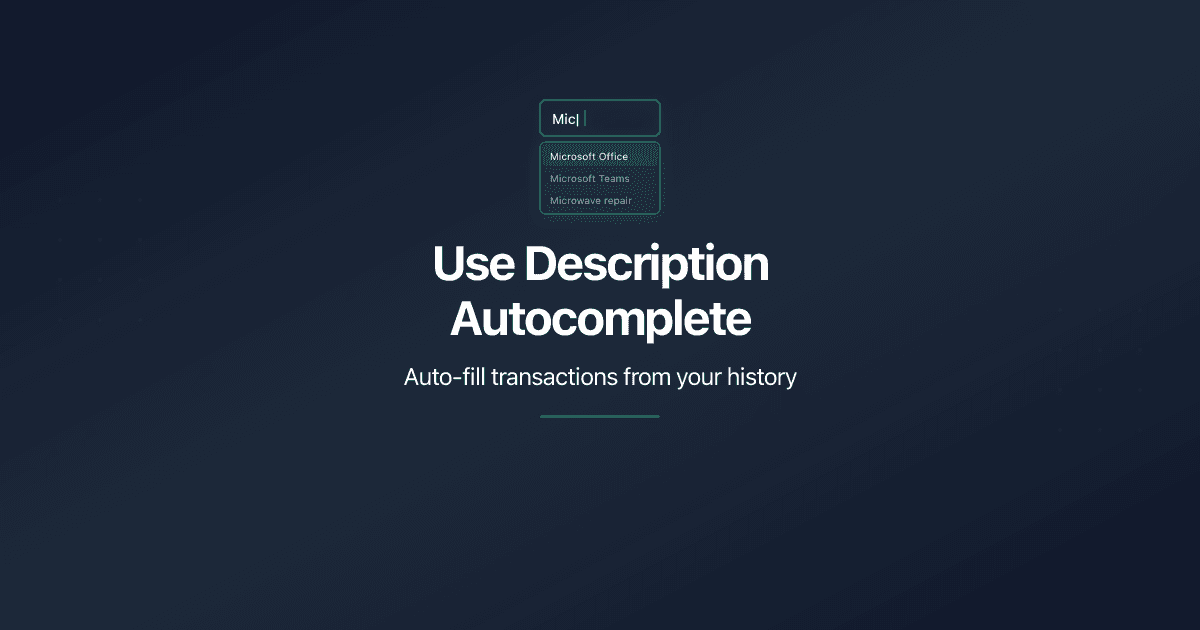
The Description field in the transaction form suggests matches from your previous transactions as you type. Select a suggestion and PaperLink fills in the entire form for you - the account, amount, and category all come from the matched transaction.
Without autocomplete, recording a monthly Spotify payment means: type the description, pick the account, enter the amount, find the category. Four fields, every time.
With autocomplete: type "Sp", tap "Spotify Premium", done. One selection fills all four fields. The form is ready to save.
How It Works
- Open the transaction form and select the Expense, Income, or Transfer tab.
- Start typing in the Description field (placeholder: e.g. Office rent payment).
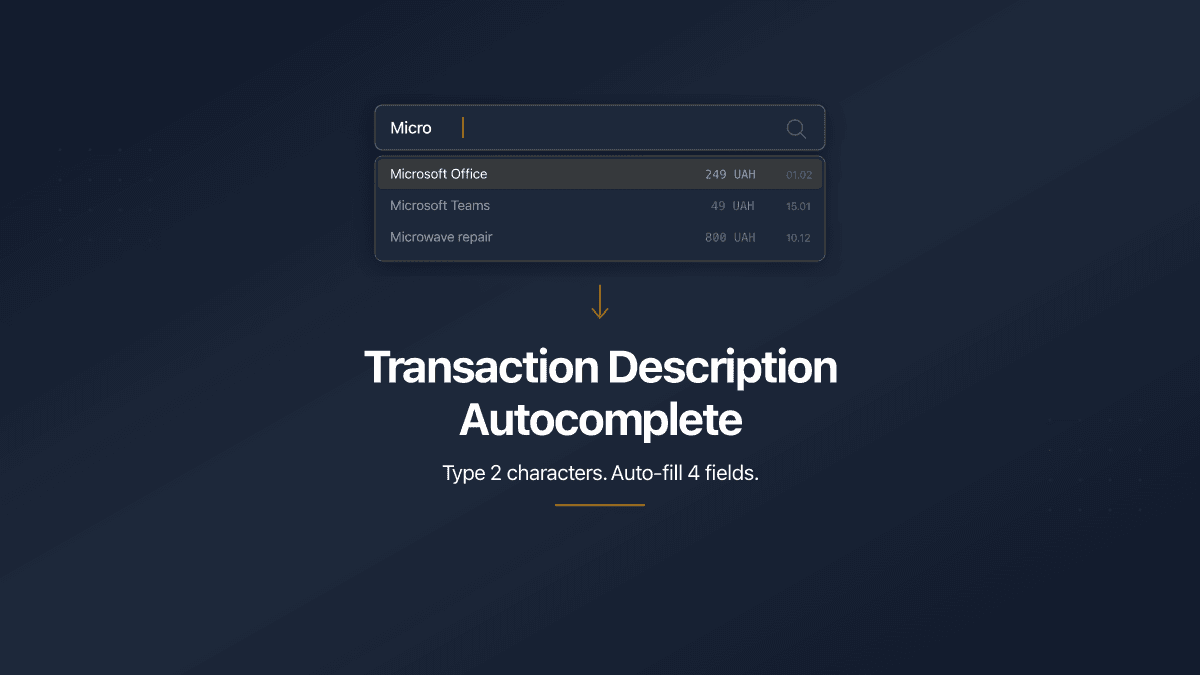
- After 2 characters, a dropdown appears with up to 5 matching transactions from your history.
- Each suggestion shows the description, amount with currency, and date.
- Click a suggestion or press Enter to select it.
What Gets Auto-Filled
When you select a suggestion, PaperLink fills in four fields at once:
| Field | What happens |
|---|---|
| Description | The full text from the matched transaction |
| Account | The financial account used in that transaction (bank, cash, card) |
| Amount | The original transaction amount |
| Category | The income or expense category (skipped for transfers) |
For example: you type "Micro", select "Microsoft Office - 249 UAH - 01.02" from the dropdown, and PaperLink fills in the description "Microsoft Office", selects the correct bank account, sets the amount to 249, and picks the "Software Subscriptions" category. All you need to do is click Save.
All auto-filled values are fully editable. Change the amount if the price went up, pick a different account, or adjust the category before saving.
Keyboard Navigation
Navigate the suggestion dropdown without a mouse:
- Arrow Down / Arrow Up - move between suggestions
- Enter - select the highlighted suggestion
- Tab - select the highlighted suggestion and move to the next field
- Escape - close the dropdown without selecting
Search Behavior
The search is case-insensitive and matches any part of the description. Typing "office" finds "Microsoft Office", "Office supplies", and "Post office delivery".
The dropdown appears only while you actively type. It does not appear when you open an existing transaction for editing - only when you start modifying the description.
If nothing matches your text, no dropdown appears. There is no "no results" message.
Data Scope
Autocomplete searches transactions that belong to the current context:
- Personal accounting - suggestions come from all your personal transactions across all personal accounts.
- Team accounting - suggestions come from all transactions in that team, across all team accounts.
You never see suggestions from other users' personal transactions or from teams you do not belong to.
If the suggested transaction's account no longer exists or belongs to a different owner, PaperLink fills in the description, amount, and category but leaves the account field for you to choose manually.
Currency Handling
When the suggested transaction used a different currency than the currently selected account, only the description is auto-filled. The amount and category are skipped because the same payment in a different currency likely needs different values.
Related
- Add a Financial Account - set up accounts before recording transactions
- Add a Company Financial Account - add business accounts for team transactions
- Manage Transaction Categories - organize income and expense categories
- Manage Company Categories - set up categories for team accounting
¿Te resultó útil este artículo?
¿Necesitas más ayuda?
Explora nuestro centro de ayuda o contacta a nuestro equipo para asistencia personalizada.
Artículos relacionados

Reset Personal Accounting Data
How to delete transactions, categories, and financial accounts in PaperLink personal accounting. What each reset action does and what it removes.

Manage Currency Exchange Rates
How to set up exchange rates in PaperLink personal accounting. Add currencies, set a base currency, use auto or manual rates.
Manage Transaction Categories
How to add, edit, and delete income and expense categories in PaperLink personal accounting. Default categories, system Uncategorized, and tree structure.
Transaction Description Autocomplete
PaperLink now auto-fills transaction forms from your history. Type 2 characters, pick a suggestion, and the description, account, amount, and category fill in automatically.