
How to Invoice a Client and Track Payment
You sent the invoice three days ago. The client has not responded. Did they receive it? Did they open it? Are they reviewing it with their finance team, or did it land in spam? You have no idea, and following up too early feels pushy while waiting too long delays your cash flow.
This is the blind spot in traditional invoicing. You create a PDF, attach it to an email, and hope for the best. The invoice leaves your screen and enters a black box until payment appears - or does not.
There is a better workflow: create the invoice, send it through a link with view analytics, see exactly when the client opens it, and record the payment when it arrives. No guessing, no awkward follow-ups, no lost invoices.
What Every Invoice Must Contain
Before worrying about tracking, the invoice itself needs to be correct. Missing details cause payment delays more often than client negligence does.
Your information:
- Business name (or your full name if sole proprietor)
- Address and contact details
- Tax identification number (EIN, VAT number, or equivalent)
- Bank account details or payment instructions
Client information:
- Company name and billing address
- Contact person (the one who approves payments)
- Purchase order number, if applicable
Invoice specifics:
- Unique invoice number (sequential - INV-001, INV-002)
- Invoice date and due date
- Clear payment terms (Net 15, Net 30, or a specific date)
Line items:
- Description of each service or product delivered
- Quantity, rate, and line total
- Subtotal, applicable taxes, and grand total
- Currency (critical for international work)
Use Net 15 instead of Net 30 for new clients. Data across invoicing platforms consistently shows that shorter payment terms result in faster payment - clients pay relative to their deadline, not the moment they receive the invoice.
Three Mistakes That Delay Payment
Sending a PDF with no tracking
You email a PDF. The client's spam filter catches it. Three weeks later, you send a follow-up asking about payment. The client says they never received the invoice. You resend. The payment clock resets to day one.
This happens more often than most freelancers admit. Email deliverability is unpredictable, and PDF attachments trigger spam filters more aggressively than plain text.
No confirmation that the client actually read it
Even when the email arrives, "received" and "read" are different things. The invoice might sit unopened in an inbox for two weeks. Or the client opened it, glanced at the total, and set it aside to discuss with their accountant - but never came back to it. Without view data, you cannot distinguish between "reviewing internally" and "forgot about it."
No payment tracking on your end
The client pays. You see the deposit in your bank account. But which invoice did it cover? If you have multiple active invoices with the same client, matching payments to invoices requires checking amounts, dates, and descriptions manually. For freelancers with five or more active clients, this bookkeeping gap grows into real confusion at tax time.
Create an Invoice and Send It with View Analytics
PaperLink combines invoice creation with document sharing and view tracking in a single workflow. Here is how the pieces connect:
Step 1: Create the invoice. Add your client, line items, tax details, and payment terms. The invoice gets a unique number and stores all the structured data - amounts, dates, status.
Step 2: Generate the PDF. PaperLink renders a professional PDF from your invoice data. The document includes your branding, all line items, tax calculations, and payment instructions.
Step 3: Share via link. Instead of emailing a PDF attachment, create a sharing link for the document. The client receives a URL they can open in any browser. No downloads required, no attachment size limits, no spam filter risk.
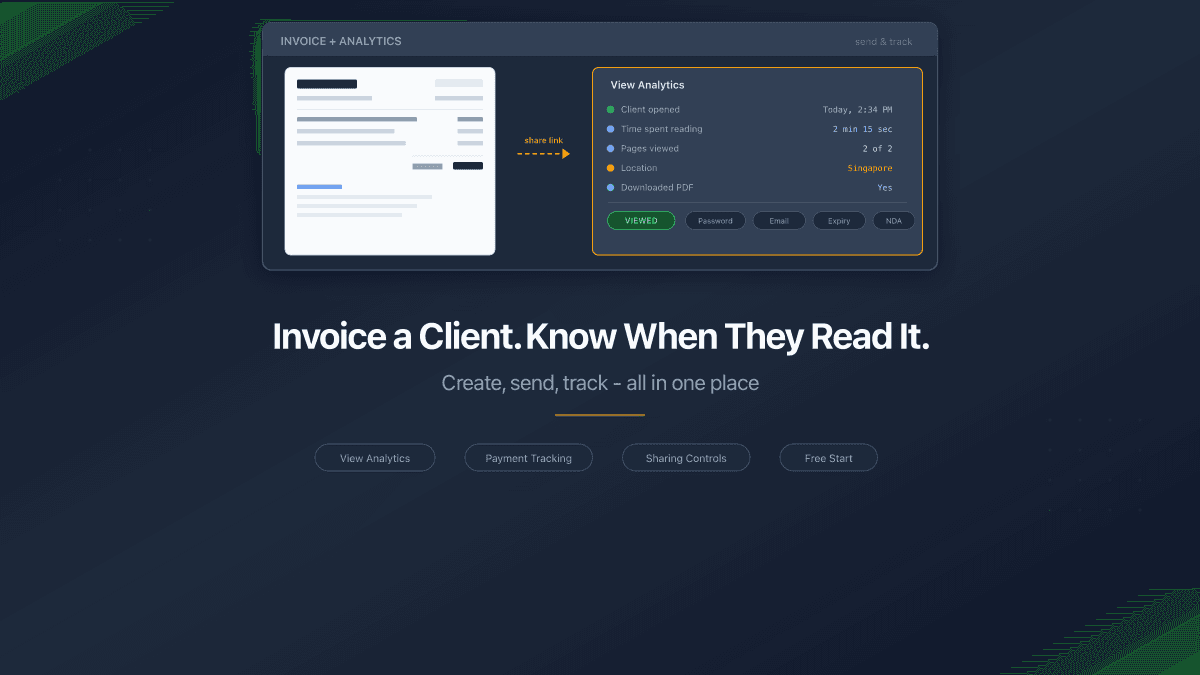
Step 4: Monitor engagement. Once the client clicks the link, PaperLink records the view - when they opened it, how long they spent reading, which pages they viewed, and from which country. If your invoice is two pages and the client only viewed page one, they may not have seen the payment details on page two.
Step 5: Record payment. When the payment arrives, mark the invoice as paid and log the transaction in your accounting. The payment links back to the invoice, closing the loop.
What View Analytics Tell You
PaperLink tracks page-by-page viewing analytics for shared documents. For invoices, this means specific, actionable signals:
| Signal | What it means | What to do |
|---|---|---|
| Client opened immediately | They are engaged and likely processing | Wait for payment per your terms |
| Opened but spent < 10 seconds | Glanced and moved on - may revisit later | Wait 2-3 days, then follow up |
| Viewed page 1 but not page 2 | Missed payment details or bank info | Send a note highlighting payment instructions |
| Has not opened after 3 days | May not have received it, or deprioritized | Resend with a brief message |
| Opened multiple times | Reviewing internally, possibly with finance team | Good sign - payment is being processed |
| Downloaded the PDF | Saving for their records or forwarding internally | Payment likely coming soon |
This transforms follow-up from guessing into data-driven action. You are not asking "did you get my invoice?" - you already know the answer.
PaperLink sharing links support password protection, email verification, expiration dates, download controls, and NDA/agreement gates. For sensitive invoices - high-value contracts or confidential pricing - you can require the recipient to verify their email or accept terms before viewing.
Sharing Controls for Professional Invoices
Different invoices need different levels of access control. A $500 freelance invoice and a $50,000 enterprise proposal have different security requirements.
| Control | Use case |
|---|---|
| Password protection | Sensitive pricing visible only to authorized personnel |
| Email verification | Confirm the specific person opened it - not a forwarded link |
| Expiration date | Quotes and estimates that are valid for 30 days |
| Download permission | Control whether the client can save a local copy |
| Agreement gate | Require NDA acceptance before viewing confidential terms |
| Custom domain | Send from yourbrand.com instead of a generic link |
These controls work together. A consulting firm sending a six-figure proposal might require email verification, disable downloads, and set a 14-day expiration. A freelance designer sending a straightforward project invoice might use an open link with downloads enabled.
Connect Invoicing to Your Financial Records
Sending and tracking the invoice is the client-facing side. The other side is your bookkeeping.
When you create an invoice in PaperLink, it exists in your accounting system - amount, client, date, status. When payment arrives, record the income transaction in the same workspace. The transaction links to the invoice, so your records show not just "received $3,000" but "received $3,000 for Invoice #INV-047, project X."
This matters for three reasons:
-
Tax reporting. At year-end, you can filter all income transactions and see exactly which invoices generated each payment. No spreadsheet reconciliation.
-
Outstanding balance tracking. Unpaid invoices show their status. You see which clients owe you money and how overdue each invoice is.
-
Revenue analysis. Category analytics show income by client, by project type, or by time period. You can answer questions like "what percentage of my revenue comes from client A?" or "how did Q1 compare to Q4?"
FAQ
Can I create invoices in multiple currencies?
Yes. Each invoice uses its own currency. If you bill some clients in USD and others in EUR or GBP, each invoice carries the correct currency through to the PDF and payment tracking.
What if my client prefers email attachments?
You can still download the PDF and email it manually. But the sharing link approach gives you view analytics that email attachments cannot provide - you will know when and whether the client read your invoice.
Do clients need a PaperLink account to view invoices?
No. The sharing link opens in any browser. Clients see a professional document viewer without needing to sign up, install software, or create an account.
How is this different from QuickBooks or FreshBooks invoicing?
QuickBooks and FreshBooks send invoices via email and can show "viewed" status. PaperLink adds page-level analytics (which pages were viewed, how long), sharing controls (password, email verification, NDA gate, expiration), and connects invoicing to a full expense tracking system - all in one platform.
Start Sending Invoices with View Analytics
Create your first invoice in PaperLink and send it with view analytics - see when your client opens it, how long they spend reading, and whether they reached the payment details. Start free.
For more on managing freelance finances - separating personal and business spending, categorizing expenses, setting aside taxes - read our freelancer finance guide. For a broader look at budgeting methods, see the complete guide to budgeting.
PaperLink is also a full expense tracking platform. Track income and expenses across multiple accounts, categorize every transaction, and see where your money goes - with 500+ pre-built categories and multi-currency support. Explore expense tracking.
Ready to try PaperLink?
Create invoices, share documents, and manage your business — all in one place.
Related Posts
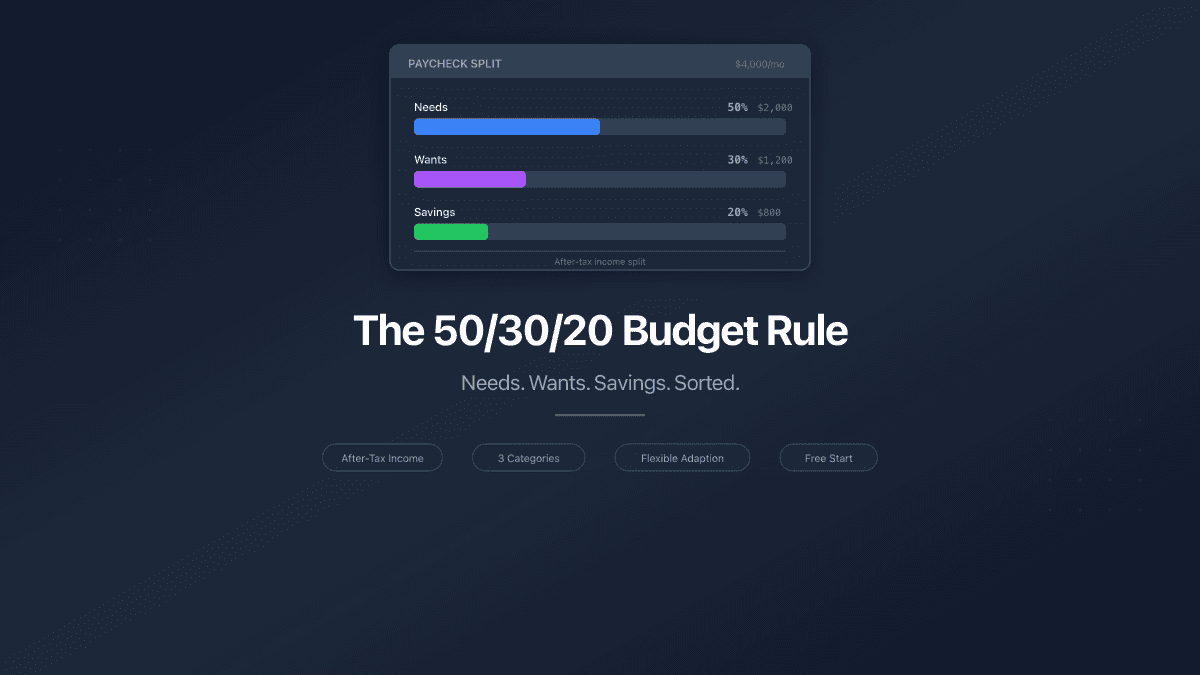
The 50/30/20 Budget Rule - How to Split Your Paycheck
The 50/30/20 budget rule splits after-tax income into needs, wants, and savings. Learn how to apply it, adapt it, and track your split.
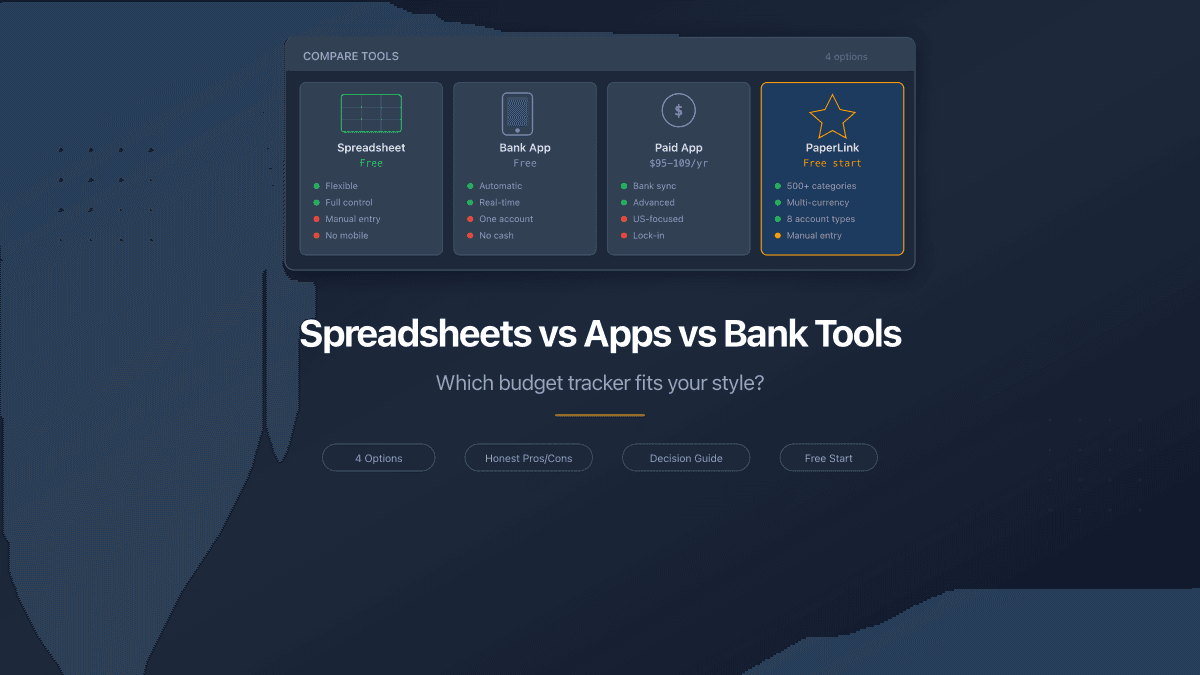
Spreadsheets vs Apps vs Bank Tools - Where to Track Money
Spreadsheets, bank apps, and dedicated budget tools compared honestly. Pros, cons, pricing, and which option fits your situation in 2026.
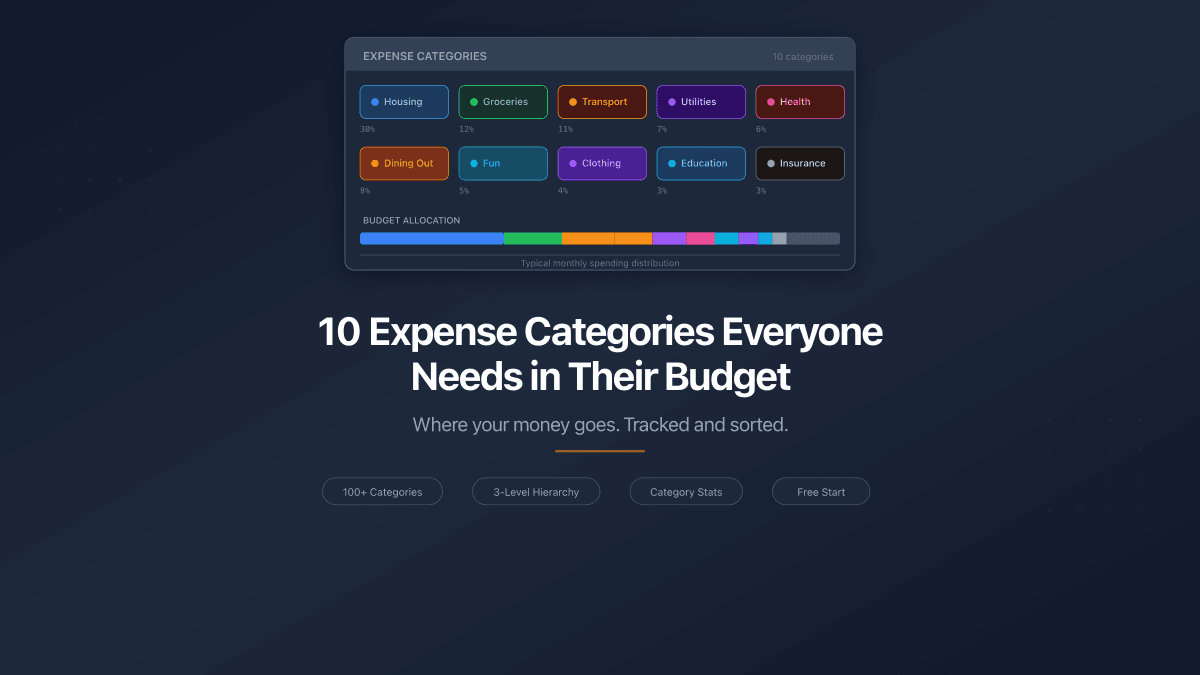
10 Expense Categories Everyone Needs in Their Budget
The 10 expense categories that cover 95% of personal spending. Typical budget share for each, example expenses, and one practical way to reduce costs.