Create Checklist Templates
Create Checklist Templates
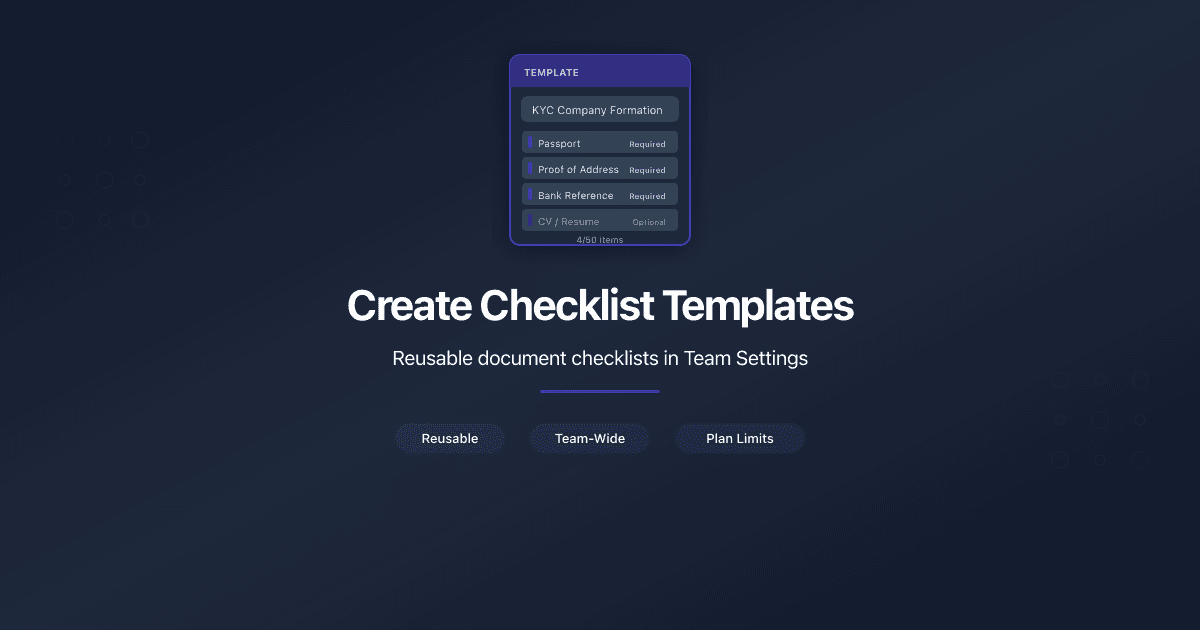
Checklist Templates are reusable document checklists stored in Team Settings. When you create a Document Request on a sharing link, you can populate the checklist from a saved template instead of adding items manually each time.
Templates are useful when you collect the same set of documents repeatedly - KYC packages, audit files, immigration documents, or any standard compliance set.
Create a Template
- Open Team Settings from the sidebar.
- Click Templates in the settings navigation.
- Click Add Template.
- Enter a Template Name (e.g., "KYC Company Formation").
- Add checklist items:
- Type a name in the Item Name field (e.g., "Certificate of Incorporation").
- Add an optional description.
- Set each item as Required or Optional using the dropdown.
- Click Add Item to add more items.
- Drag items to reorder them using the drag handle on the left.
- Click Save Template.
You are redirected back to the templates list. The new template appears with its item count.
Template names must be unique within your team. Two different teams can have a template called "KYC Package" independently.
Edit a Template
- Open Team Settings > Templates.
- Click the Edit button on the template row.
- Modify the template name, add or remove items, reorder items, or change required/optional flags.
- Click Save Template.
Changes to a template do not affect existing Document Requests that were created from it. Templates are copied when applied - each Document Request gets its own independent copy of the items.
Delete a Template
- Open Team Settings > Templates.
- Click the Delete button on the template row.
- Confirm deletion in the dialog.
Deletion is permanent. Existing Document Requests created from this template are not affected - their items are independent copies.
Use a Template When Creating a Link
When you create or edit a folder sharing link and toggle Request documents on, a From Template dropdown appears. Select a template, and all its items populate the checklist automatically.
You can modify the items after applying the template - add, remove, or edit items for the specific engagement. Changes apply only to the current Document Request, not to the template.
Plan Limits
The number of templates your team can create depends on your plan:
| Plan | Templates |
|---|---|
| Free | 1 |
| Pro | 3 |
| Business | 10 |
| Data Rooms / Data Rooms Plus | 100 |
| Data Rooms Premium | Unlimited |
| Accounting plans | Not available |
Each template supports up to 50 items.
When the template limit is reached, the Add Template button is disabled and a banner shows the current count with an upgrade option.
On plan downgrade, existing templates are preserved. You can view and edit them, but creating new templates is blocked until the count falls below the new limit.
Permissions
- OWNER, ADMIN, and MANAGER can create, edit, and delete templates.
- MEMBER can view templates (read-only) but cannot create, edit, or delete them.
Templates are shared across the entire team. Any team member can select a template when creating a Document Request, regardless of who created it.
Related
- Collect Documents with Document Requests - how to attach a checklist to a sharing link
- Invite a Team Member - add people to your team
- Manage Your Subscription - upgrade your plan for more templates
- Collect Documents from Clients Through Shared Links - feature overview with use cases
Чи була ця стаття корисною?
Потрібна допомога?
Перегляньте наш довідковий центр або зверніться до нашої команди за персональною допомогою.