
Collect Documents with Document Requests
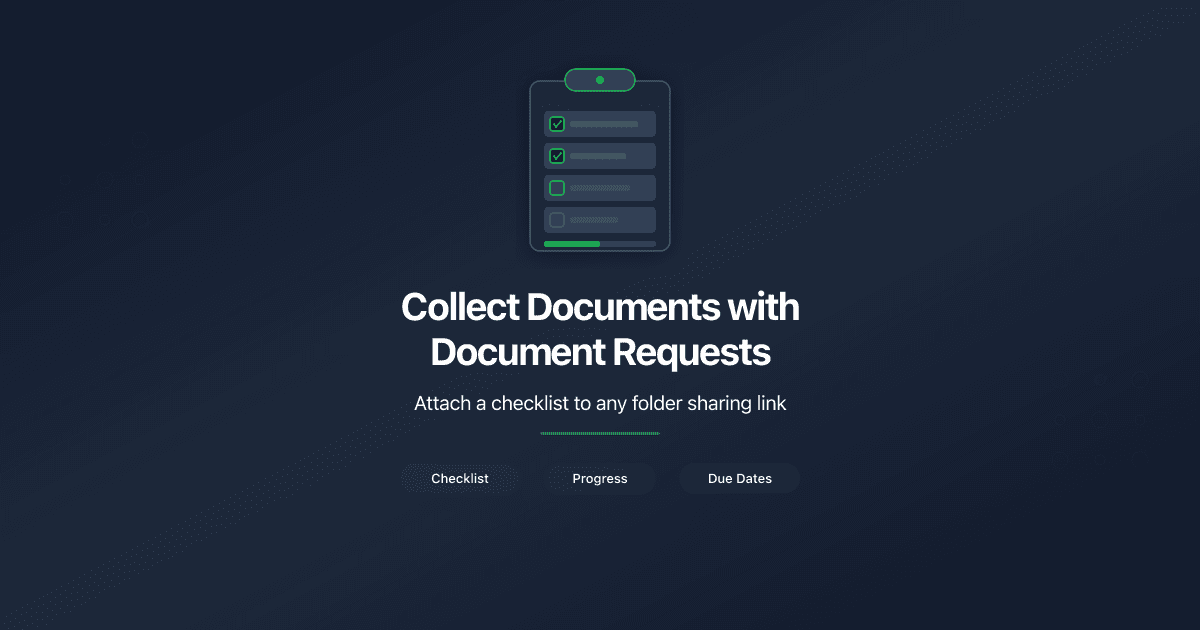
Collect Documents with Document Requests
A Document Request is a checklist of documents attached to a folder sharing link. The link recipient sees both your shared files and a list of documents they need to upload - in one view.
Use Document Requests when you need files back from a client: KYC packages, tax documents, signed agreements, permits, or any structured set of files.
Create a Document Request
- Open a folder from Shared Documents in the sidebar.
- Click Create Link to start a new folder link.
- Scroll to the Document Request section in the link form.
- Toggle Request documents to on.
- Set a Due Date (optional) - the deadline for the recipient to upload all documents.
- Add checklist items:
- Type a name in the Document name field (e.g., "Passport").
- Add an optional description (e.g., "Clear copy of all pages").
- Set each item as Required or Optional.
- Click Add Item to add more items.
- Click Create Link at the bottom of the form.
Use From Template to populate the checklist from a saved template instead of adding items one by one. Select a template from the dropdown, and all its items appear automatically. You can still add, remove, or edit items before creating the link.
Add a Document Request to an Existing Link
- Open the folder and find the link in the links list.
- Click the edit (pencil) icon on the link row.
- Toggle Request documents to on in the Document Request section.
- Add items and set a due date.
- Click Save Changes.
The next time the recipient opens the link, they see the checklist.
What the Recipient Sees
The recipient opens the shared link and sees two sections:
- Shared files (top) - the documents you placed in the folder.
- Document checklist (bottom) - the list of documents they need to upload, with a progress bar and due date.
Each pending item shows an Upload button. The recipient clicks it, selects a PDF file, and submits. The item status changes from "Waiting for upload" to "Uploaded."
Required items are marked with an asterisk. Optional items are labeled "Optional."
Recipients do not need a PaperLink account to upload documents. Authentication is handled by whatever access controls you set on the link - email verification, password, or NDA gate.
Different Checklists for Different Recipients
Each link to a folder can have its own independent Document Request. Create multiple links to the same folder with different checklists for different stakeholders.
For example, a corporate services firm might create:
- Link for lawyer - Passport, Proof of Address, Bank Reference Letter
- Link for accountant - Tax Return, P&L Statement, Balance Sheet
- Link for partner - no Document Request (view-only)
Each recipient sees only their own checklist. Uploaded files from all links land in the same folder.
Track Progress
Every link with a Document Request shows a progress badge in the links list (e.g., "3/5"). This counts uploaded items against total required items.
The folder also has a Document Requests tab that shows all active requests across all links. Each request is displayed as an expandable section with:
- Link name and progress badge
- Due date (if set)
- Overdue indicator (if past due date)
- Individual item statuses - "Waiting for upload" or "Uploaded" with the file name and uploader email
Due Dates
Due dates are optional. When set, the recipient sees "Documents due by " above their checklist.
If the deadline passes, both you and the recipient see an overdue indicator. Overdue requests do not block uploads - the recipient can still submit files after the deadline.
Edit or Remove a Document Request
To modify a Document Request, edit the link and change the checklist items, due date, or toggle the request off entirely.
- Adding items - new items appear as "Waiting for upload" for the recipient.
- Removing items - the item disappears from the checklist. If the item had an uploaded file, the file remains in the folder.
- Toggling off - removes the entire checklist from the link. Uploaded files remain in the folder.
Limits
- Only folder links support Document Requests. File links do not have this option.
- Only PDF files are accepted for upload.
- The maximum number of items per Document Request matches the template limit (50 items).
- OWNER, ADMIN, and MANAGER roles can create and manage Document Requests. MEMBER role has read-only access.
Related
- Create a Sharing Link - how to create a sharing link
- Manage Link Settings - all link settings explained
- Set Up a Data Room - organize files in folders with access controls
- Create Checklist Templates - save reusable checklists for Document Requests
- Collect Documents from Clients Through Shared Links - feature overview with use cases
- Why Corporate Services Firms Need a Data Room - data rooms for KYC and compliance
Чи була ця стаття корисною?
Потрібна допомога?
Перегляньте наш довідковий центр або зверніться до нашої команди за персональною допомогою.
Пов'язані статті
Collect Documents from Clients Through Shared Links
PaperLink Document Requests let you attach a document checklist to any shared folder link. Clients upload required files directly - with progress tracking and due dates.
The Data Room Checklist for Startup Fundraising
A stage-specific data room checklist for startup fundraising. What documents VCs expect at pre-seed, seed, and Series A - organized by category with setup tips.