
Transaction Description Autocomplete
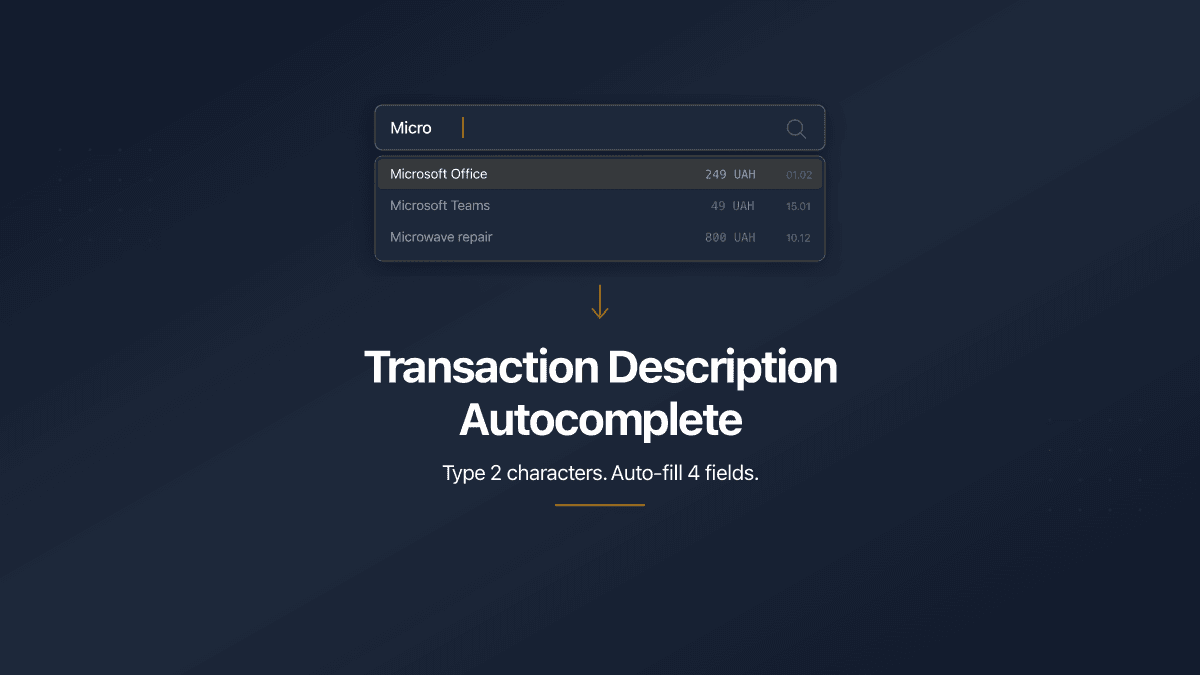
Recording the same expense every month - rent, Spotify, cloud hosting - used to mean typing the description, picking the account, entering the amount, and selecting the category. Every single time.
Now the Description field remembers. Start typing and PaperLink suggests matching transactions from your history. Select one, and four fields fill in at once.
What Changed
The transaction form now includes description autocomplete. Type at least 2 characters in the Description field, and a dropdown appears with up to 5 matching transactions sorted by most recent date.
Each suggestion row shows three pieces of information: the description text, the amount with currency, and the date of the original transaction. This helps you pick the right match when you have similar entries at different price points.
When you select a suggestion, PaperLink auto-fills:
| Field | What happens |
|---|---|
| Description | Full text from the matched transaction |
| Account | The financial account (bank, cash, card) used in that transaction |
| Amount | The original amount |
| Category | The income or expense category |
The search is case-insensitive and matches any part of the description. Typing "office" finds "Microsoft Office", "Office supplies", and "Post office delivery".
Every auto-filled value is fully editable. If the price changed or you want a different category, adjust before saving.
Zero Setup Required
Unlike recurring transaction templates that need manual configuration for each repeating payment, autocomplete works out of the box. It pulls from your existing transaction history - no templates, no rules, no scheduling. The more transactions you record, the more useful it becomes.
Works in Both Contexts
Autocomplete adapts to your current accounting context:
- Personal accounting - suggestions come from all your personal transactions across every personal account.
- Team accounting - suggestions come from all team transactions across every team account.
Data is strictly isolated. Personal search never returns team transactions, and team search never includes personal entries or data from other teams.
Keyboard-Friendly
Navigate the suggestion dropdown without touching the mouse:
- Arrow keys - move between suggestions
- Enter or Tab - select and auto-fill
- Escape - dismiss the dropdown
Smart Fallbacks
Not every suggestion maps perfectly to the current form state. PaperLink handles edge cases:
- Account deleted or unavailable - fills description, amount, and category. Leaves the account field for you to choose.
- Currency mismatch - if the suggested transaction used a different currency than the currently selected account, only the description is filled. Different currency usually means different context.
- Transfer transactions - category is skipped (transfers between accounts do not use categories).
- Deleted category - description and amount fill in. You pick a new category manually.
How to Use It
- Open the transaction form and select the Expense, Income, or Transfer tab.
- Start typing in the Description field.
- After 2 characters, the suggestion dropdown appears.
- Click a suggestion or press Enter to auto-fill the form.
- Adjust any values if needed, then save.
That is it. No settings to enable, no feature flags. Every PaperLink user with existing transactions sees suggestions automatically.
What's Next
This is the first step toward smarter transaction entry. Future improvements may include suggestion ranking by frequency and date-pattern detection for truly recurring payments. For now, the autocomplete handles the most common case: you type a few letters, and PaperLink fills in the rest.
Try it in your PaperLink workspace.
Related articles:
- Use Description Autocomplete - step-by-step help guide
- Add a Financial Account - set up accounts for your transactions
- Manage Transaction Categories - organize income and expense categories
Готові спробувати PaperLink?
Створюйте рахунки, діліться документами та керуйте бізнесом — усе в одному місці.
Схожі записи
Import Claude Artifacts as Trackable Shared Documents
PaperLink now imports Claude artifacts directly from their URL and converts pasted text to PDF - with view analytics, password protection, and sharing controls.
Custom URL Slugs for Shared Links
Replace auto-generated link IDs with clean, memorable URLs. Set custom slugs on shared documents and folders - on our domain or yours.

PaperLink Now Speaks Greek
PaperLink is now available in Greek. Navigate the app, share documents, and manage invoices in your native language - whether you're in Athens, Limassol, or anywhere in the world.