
Collect Documents with Document Requests
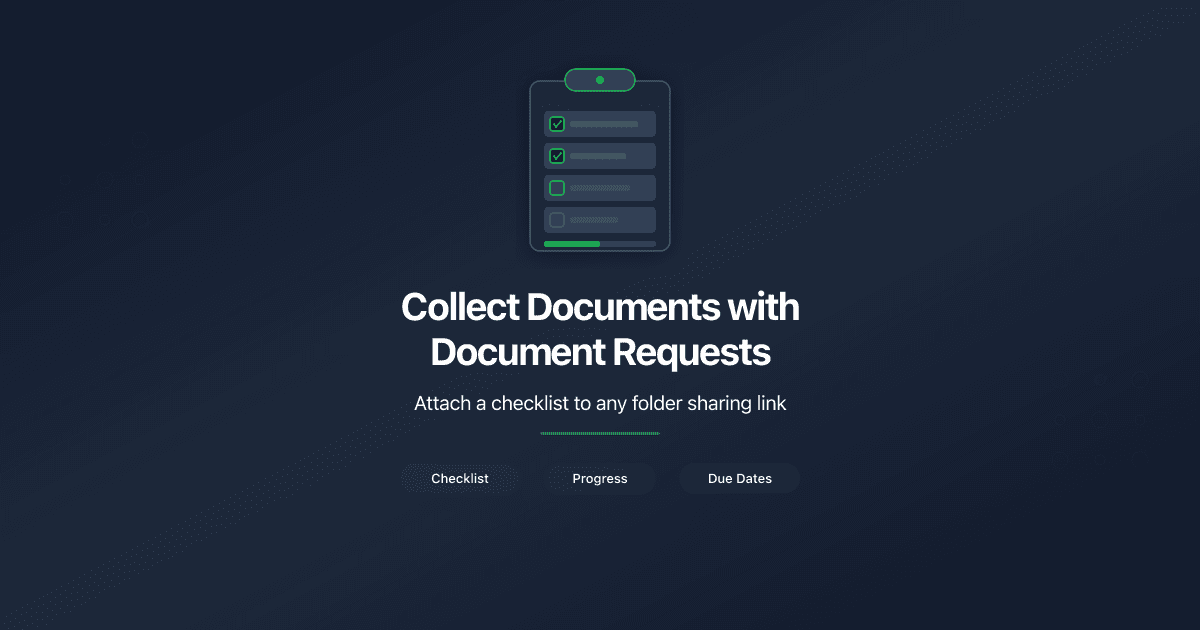
Collect Documents with Document Requests
A Document Request is a checklist of documents attached to a folder sharing link. The link recipient sees both your shared files and a list of documents they need to upload - in one view.
Use Document Requests when you need files back from a client: KYC packages, tax documents, signed agreements, permits, or any structured set of files.
Create a Document Request
- Open a folder from Shared Documents in the sidebar.
- Click Create Link to start a new folder link.
- Scroll to the Document Request section in the link form.
- Toggle Request documents to on.
- Set a Due Date (optional) - the deadline for the recipient to upload all documents.
- Add checklist items:
- Type a name in the Document name field (e.g., "Passport").
- Add an optional description (e.g., "Clear copy of all pages").
- Set each item as Required or Optional.
- Click Add Item to add more items.
- Click Create Link at the bottom of the form.
Use From Template to populate the checklist from a saved template instead of adding items one by one. Select a template from the dropdown, and all its items appear automatically. You can still add, remove, or edit items before creating the link.
Add a Document Request to an Existing Link
- Open the folder and find the link in the links list.
- Click the edit (pencil) icon on the link row.
- Toggle Request documents to on in the Document Request section.
- Add items and set a due date.
- Click Save Changes.
The next time the recipient opens the link, they see the checklist.
What the Recipient Sees
The recipient opens the shared link and sees two sections:
- Shared files (top) - the documents you placed in the folder.
- Document checklist (bottom) - the list of documents they need to upload, with a progress bar and due date.
Each pending item shows an Upload button. The recipient clicks it, selects a PDF file, and submits. The item status changes from "Waiting for upload" to "Uploaded."
Required items are marked with an asterisk. Optional items are labeled "Optional."
Recipients do not need a PaperLink account to upload documents. Authentication is handled by whatever access controls you set on the link - email verification, password, or NDA gate.
Different Checklists for Different Recipients
Each link to a folder can have its own independent Document Request. Create multiple links to the same folder with different checklists for different stakeholders.
For example, a corporate services firm might create:
- Link for lawyer - Passport, Proof of Address, Bank Reference Letter
- Link for accountant - Tax Return, P&L Statement, Balance Sheet
- Link for partner - no Document Request (view-only)
Each recipient sees only their own checklist. Uploaded files from all links land in the same folder.
Track Progress
Every link with a Document Request shows a progress badge in the links list (e.g., "3/5"). This counts uploaded items against total required items.
The folder also has a Document Requests tab that shows all active requests across all links. Each request is displayed as an expandable section with:
- Link name and progress badge
- Due date (if set)
- Overdue indicator (if past due date)
- Individual item statuses - "Waiting for upload" or "Uploaded" with the file name and uploader email
Due Dates
Due dates are optional. When set, the recipient sees "Documents due by " above their checklist.
If the deadline passes, both you and the recipient see an overdue indicator. Overdue requests do not block uploads - the recipient can still submit files after the deadline.
Edit or Remove a Document Request
To modify a Document Request, edit the link and change the checklist items, due date, or toggle the request off entirely.
- Adding items - new items appear as "Waiting for upload" for the recipient.
- Removing items - the item disappears from the checklist. If the item had an uploaded file, the file remains in the folder.
- Toggling off - removes the entire checklist from the link. Uploaded files remain in the folder.
Limits
- Only folder links support Document Requests. File links do not have this option.
- Only PDF files are accepted for upload.
- The maximum number of items per Document Request matches the template limit (50 items).
- OWNER, ADMIN, and MANAGER roles can create and manage Document Requests. MEMBER role has read-only access.
Related
- Create a Sharing Link - how to create a sharing link
- Manage Link Settings - all link settings explained
- Set Up a Data Room - organize files in folders with access controls
- Create Checklist Templates - save reusable checklists for Document Requests
- Collect Documents from Clients Through Shared Links - feature overview with use cases
- Why Corporate Services Firms Need a Data Room - data rooms for KYC and compliance
Σας φάνηκε χρήσιμο αυτό το άρθρο;
Χρειάζεστε περισσότερη βοήθεια;
Περιηγηθείτε στο κέντρο βοήθειας ή επικοινωνήστε με την ομάδα μας για εξατομικευμένη υποστήριξη.
Σχετικά άρθρα
Collect Documents from Clients Through Shared Links
PaperLink Document Requests let you attach a document checklist to any shared folder link. Clients upload required files directly - with progress tracking and due dates.
The Data Room Checklist for Startup Fundraising
A stage-specific data room checklist for startup fundraising. What documents VCs expect at pre-seed, seed, and Series A - organized by category with setup tips.